
Contacts
Google LLCCommunication
4.330.72K Reviews
- Version
- Varies With Device
- Installs
- 5.00B
- Age Rating
- Everyone
Screenshots
Our Review of Contacts
 Analysis by Appyee
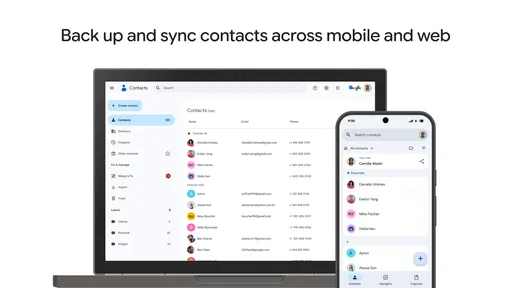
I rely on my address book most when I need a detail quickly: a number while arranging a pickup, an email address before a meeting, or the right person in a long list of familiar names. Google’s Contacts is a free communication app from Google LLC, and its appeal is straightforward: it gives contact details a dedicated place and can back them up for access across devices. I find it most useful when I want my people’s information organized without turning contact management into another complicated task.
When a connection is part of the job
Contacts is most valuable when the information you need is connected to the rest of your Google use. If you move between devices or rely on an account-based setup, having contact details available beyond one handset can make a real difference. The practical benefit is less about flashy tools and more about avoiding the familiar scramble of searching an old message for someone’s number after changing phones.
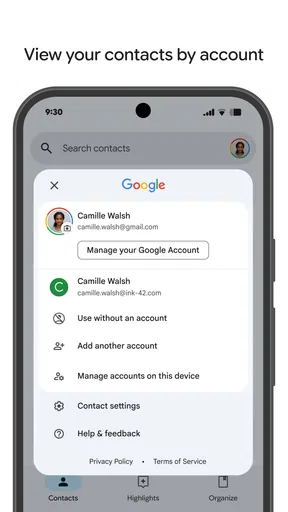
That convenience depends on how your accounts and sync are configured. I would check which account is being used when adding a new person, especially if personal and work details are kept separately. Otherwise, a contact can end up in a place you did not expect, which makes it feel missing when you search from another device. A quick check of the account before saving is a small habit that can prevent a lot of cleanup later.
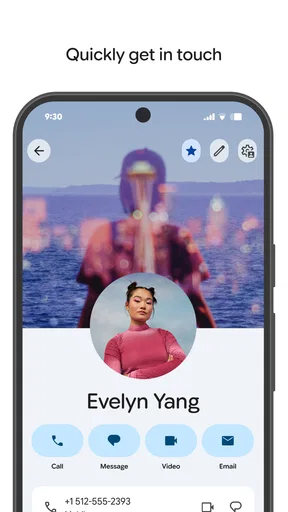
In everyday use, I also like to think of the address book as a shared point of reference across communication tasks, rather than a replacement for them. It helps me find the person; I still choose the appropriate calling, messaging, or email app to reach them. That separation is useful if you prefer dedicated tools for conversations, but it means Contacts is not an all-in-one messaging service.
Useful in the middle of a busy day
A realistic example: I’m heading to an appointment, need to reach the person I’m meeting, and have only a moment to find the right number. A tidy contact entry with a recognizable name and the correct phone number is faster and less error-prone than digging through chat history. Adding a short note when it is genuinely helpful—such as where I know someone from—can also make an unfamiliar name easier to place later.
The app suits people who want a central address book and already use Google services, as well as anyone who values keeping their contacts available when they change devices. It is less compelling if you want a full customer-management system, detailed interaction tracking, or one workspace for every conversation. For those needs, a dedicated CRM or messaging app is a better fit; Contacts is designed around the people and their details, not a record of every exchange.
What happens when the connection is unreliable?
Because the experience can involve account sync and backup, connectivity matters most when changes need to travel between devices or when you are relying on a cloud copy. I would not treat a contact as safely available everywhere until sync has had a chance to catch up. If a newly added number does not appear where expected, first check the account and connection, then give synchronization time before entering it again. Creating duplicates in a hurry can make the next search more confusing.
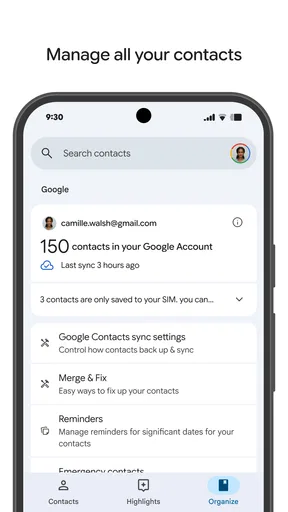
For a device switch, I’d take a moment to confirm the contacts are associated with the account I plan to use on the new phone. A backup is reassuring, but a sensible recovery routine starts before anything goes wrong: keep account access current, check that important entries appear in the expected place, and avoid relying on a single device as the only copy of essential numbers. That is a practical precaution, not a reason to expect every sync issue to resolve instantly.
Keeping the address book useful and intentional
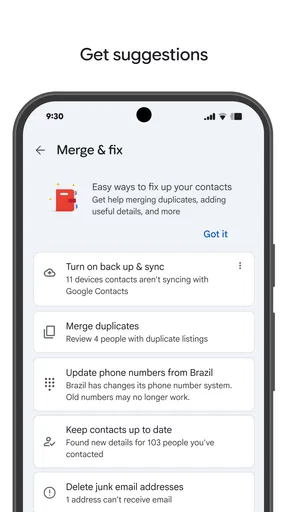
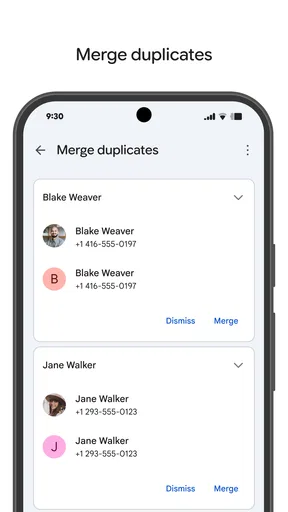
Contact lists can contain personal information, so it is worth deciding which account should hold each entry and keeping the list clean. I would review old or duplicate records occasionally, particularly after importing contacts or consolidating accounts. Consistent names and useful labels make search more dependable, while unnecessary notes can make an address book harder to maintain than it needs to be.
For people who are careful about data use, the key distinction is between keeping a record on a device and syncing or backing it up through an account. The latter can make information easier to recover and reach elsewhere, while also making account security and settings more important. I’d use the backup convenience deliberately, with a strong, protected account and a clear idea of where personal and work contacts belong.
All About Simplicity and Functionality
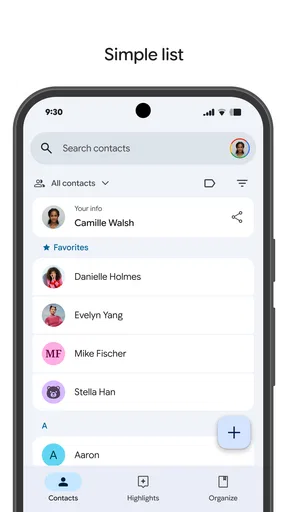
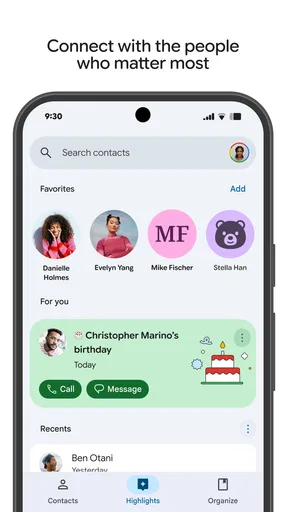
First things first, Contacts is all about simplicity. Upon launching the app, you’re greeted with a clean, user-friendly interface. No clutter, just straightforward functionality. It’s like your old contact book but with a tech-savvy twist. You can easily import contacts from your existing phone book, so you’re not starting from scratch.
The app allows you to organize contacts with tags and groups. This feature is a lifesaver for someone like me who has separate groups for work, family, and friends. Just tap on a group, and voila! All the relevant contacts are right there. It’s super handy when you’re trying to send a group message or email.
Customization Galore
One of the things I love about Contacts is the level of customization it offers. You can add photos, notes, and even special dates like birthdays or anniversaries to each contact. This makes it not just a contact manager but almost a mini-CRM for personal use.
Another cool feature is the ability to set custom ringtones for different contacts. So, you’ll know exactly who’s calling without even looking at your phone. Talk about convenience!
Seamless Integration
What’s a good app without proper integration, right? Contacts syncs effortlessly with your email accounts and social media profiles. This means you can pull in information from these platforms directly into the app. It’s like having a personal assistant keeping everything up-to-date for you.
Plus, if you're using it for work purposes, the app integrates with most calendar apps, helping you keep track of meetings and appointments connected to your contacts. This integration is smooth and doesn’t require a tech wizard to set up.
Privacy and Security
In the age of data breaches, security is always a concern. Contacts doesn’t skimp in this department. With robust encryption and privacy settings, you can be sure your data is safe. The app doesn’t share your information with third-party vendors, which is a huge relief for privacy-conscious users like myself.
They also offer a backup feature, so you never have to worry about losing your information. Just a few taps, and your entire contact list is backed up to the cloud. It’s a great peace of mind to have, especially if you’re prone to switching devices.
Beyond the usual phone book
Compared with the basic address book built into a phone, the main reason I’d choose Google’s app is the account-centered approach: contact details can be backed up and made available across devices. A device’s default app may be enough if you keep one phone and only need names and numbers. Contacts makes more sense when you want a consistent list tied to an account and do not want to rebuild it by hand after moving to another handset.
That does not make it the best choice for every kind of organization. A small business owner who needs sales stages, reminders about follow-ups, or a history of customer interactions will outgrow a standard contact manager. Likewise, someone who prefers to keep all information strictly within a local device may favor a simpler, device-focused option and should review account settings before enabling sync or backup. I see Contacts as a practical address book, not a substitute for either a CRM or a deliberate privacy workflow.
Small habits that prevent messy lists
One useful habit is to save a person once and add context to that entry, rather than creating separate versions for different situations. If I know someone through both work and a community group, a short note can help me remember the connection without duplicating their number. Before importing a list, I would also scan for old entries and inconsistent name formats; imports are convenient, but they can carry forward years of clutter.
Groups are most helpful when they reflect a real task. I might keep work contacts separate from family so I can narrow the list quickly, but I would avoid making a new group for every temporary project. Too many categories become another system to maintain. A few durable groups are easier to recognize and more useful when I’m in a hurry to find people for a message or email.
Custom details are worth adding selectively. A photo can help distinguish people with similar names, while a birthday or anniversary can be useful if I actually want that date attached to the person’s record. I would not fill every field simply because it exists: extra personal information creates more to maintain and may not improve the way I use the address book. The best contact entry is the one that lets me identify the person and reach them without second-guessing.
Choosing it with realistic expectations
People often ask whether Contacts is only useful with a Google account. Its strongest case is clearly account-based backup and access across devices, so I would use it in that context and confirm which account is handling entries. If you mainly want a simple list on one phone, the built-in address book may already cover your needs. If you want conversations, customer histories, or project tracking, choose a tool made for those jobs instead.
Another practical question is what to do if a person seems to disappear after a device change. I would check the account selected for the entry, verify that the same account is available on the new device, and allow time for sync before adding the details again. If you enter the same person repeatedly while troubleshooting, you may solve the immediate problem only to create duplicates that are harder to sort out later.
Contacts is free, rated for Everyone, and has been available since December 7, 2015. Its average rating is 4.3 from around 1.9 million ratings, and it has over 5 billion installs. Those figures suggest broad familiarity, but they do not decide whether it suits your habits; the key question is whether you want contact details organized around an account and useful across devices. I’d recommend trying it if that is the problem you want to solve, while taking a moment to understand where your entries are stored and how they are backed up.
Final Thoughts
After spending some time with Contacts, I’ve got to say, it’s a solid choice for anyone looking to streamline their contact management. The app is intuitive, feature-rich, and offers a level of customization that’s hard to beat. Whether you’re using it for personal organization or work-related tasks, it’s got you covered.
The seamless integration, combined with top-notch privacy features, makes it a must-have for anyone serious about managing their contacts efficiently. So, if you’re tired of the chaos in your current contact list, give Contacts a try. It might just be the organizational tool you didn’t know you needed!
Privacy and Permissions
See what permissions an app requests and how it handles your data.
- Identity
- find accounts on the device, add or remove accounts, read your own contact card, modify your own contact card
- Contacts
- find accounts on the device, read your contacts, modify your contacts
- SMS
- read your text messages (SMS or MMS)
- Phone
- directly call phone numbers, read call log, read phone status and identity
- Photos/Media/Files
- read the contents of your USB storage
- Storage
- read the contents of your USB storage
- Device ID & call information
- read phone status and identity
- Other
- view network connections, measure app storage space, full network access, control Near Field Communication, read sync settings, run at startup, use accounts on the device, control vibration, prevent device from sleeping, modify system settings, toggle sync on and off, install shortcuts, read Google service configuration
How Contacts Compares
Full ComparisonContacts suits people organizing and backing up their address book, Truecaller is the strongest fit for blocking spam calls, and Getcontact adds caller identification with privacy controls.
| App | Developer | Rating | Price |
|---|---|---|---|
 ContactsThis App | Google LLC | 4.3 | Free |
 Truecaller: Spam Call Blocker | Truecaller | 4.4 | Free |
 Getcontact | Getverify LDA | 4.0 | Free |
Verdict
Strengths of Contacts
- User-friendly interface for easy navigation.
- Seamless integration with social media accounts.
- Customizable contact groups for organization.
- Quick search feature for fast contact retrieval.
- Supports backup to cloud services easily.
Limitations of Contacts
- Limited custom fields compared to other apps.
- Occasional syncing issues with certain accounts.
- Ads in the free version can be intrusive.
- No dark mode option available yet.
- Requires constant internet for some features.
Other Releases by Google LLC
View All
Google Calendar
Productivity4.6

Google Messages
Communication4.6

Tools4.0

Google TV
Video Players & Editors3.9
Similar Picks in This Category
View AllGoogle Messages
Google LLC4.6

Gmail
Google LLC4.1

Google Meet
Google LLC4.4

Google Chrome
Google LLC4.1

WhatsApp Messenger
WhatsApp LLC4.6

Carrier Services
Google LLC4.2
You May Also Like
View All

Frequently Asked Questions
What features does the Contacts app offer?
The Contacts app provides a comprehensive suite of features, including advanced search functionality, contact grouping, and customizable fields. Users can easily import and export contacts, sync with cloud services, and even integrate with other apps for a seamless experience. Additionally, it offers security features like encryption and backup options.
Is the Contacts app secure and how does it protect my data?
Yes, the Contacts app prioritizes user security by implementing data encryption and secure cloud syncing. It also offers password protection and two-factor authentication to ensure your contact information remains private. Regular updates address potential vulnerabilities, keeping your data safe from unauthorized access.
Can I sync my Contacts app with other devices and services?
Absolutely! The Contacts app supports synchronization with multiple devices and popular cloud services such as Google Contacts, iCloud, and Microsoft Exchange. This ensures that your contacts are up-to-date and accessible across all your devices. The app also provides options for automatic or manual syncing.
Does the Contacts app offer customization options?
Yes, the Contacts app offers extensive customization options to tailor your experience. Users can personalize contact fields, set custom ringtones for specific contacts, and apply themes or color schemes. Additionally, the app allows you to create custom contact groups for better organization and management.
How user-friendly is the Contacts app for beginners?
The Contacts app is designed with an intuitive interface that is easy to navigate for both beginners and experienced users. It includes helpful tutorials and FAQs to assist new users. The app’s layout is clean and straightforward, making the process of adding, editing, or deleting contacts simple and efficient.
